












FTP Info (Editors)
Step one: Download FTP Software
FTP client recommendations?
There are many FTP clients available for Mac, PC and Linux users. Here are some of the more popular. (Use at your own risk.) • Mac: Transmit <–Sara’s favorite • Mac: Cyberduck (Free)
Step two: Connect to the onelove server
Troubleshooting poor connections:
- If you are connecting wirelessly, try to connect directly instead via Ethernet. This prevents a broken connection during long upload
- What internet provider are you using? Very often when a team member has an issue like this, we have found that by calling your ISP and asking if there are any faster speeds available, they discover there are! In fact, at the same price often! ISP’s have new promotions every month and they do not always tell you about it unless you ask
- If you cannot directly plug into your router, move your computer as close to the wireless base as possible!
FTP Login Credentials
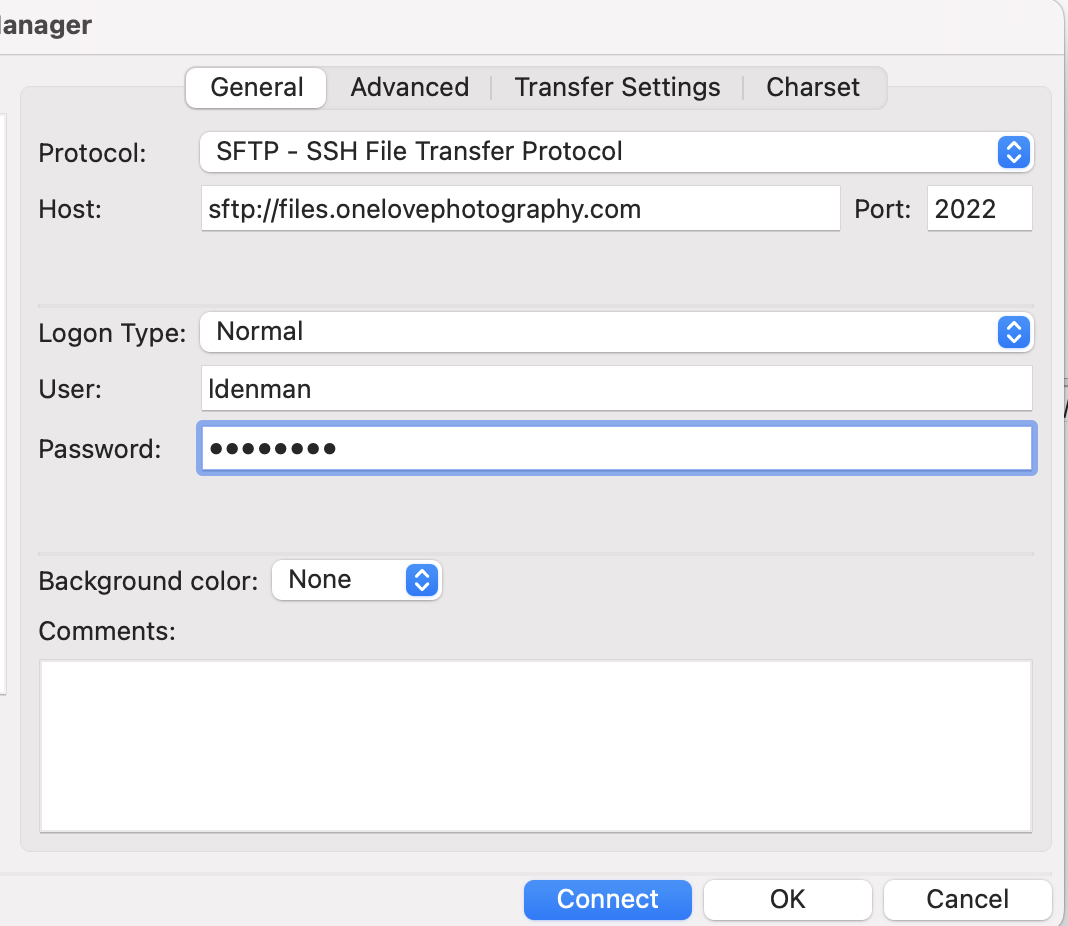
| PROTOCOL: | SFTP |
| SERVER: | |
| PORT: | 2022 |
Username & Password: Request from Sara
Having trouble? Watch this video on how to login
Transmit Instructions
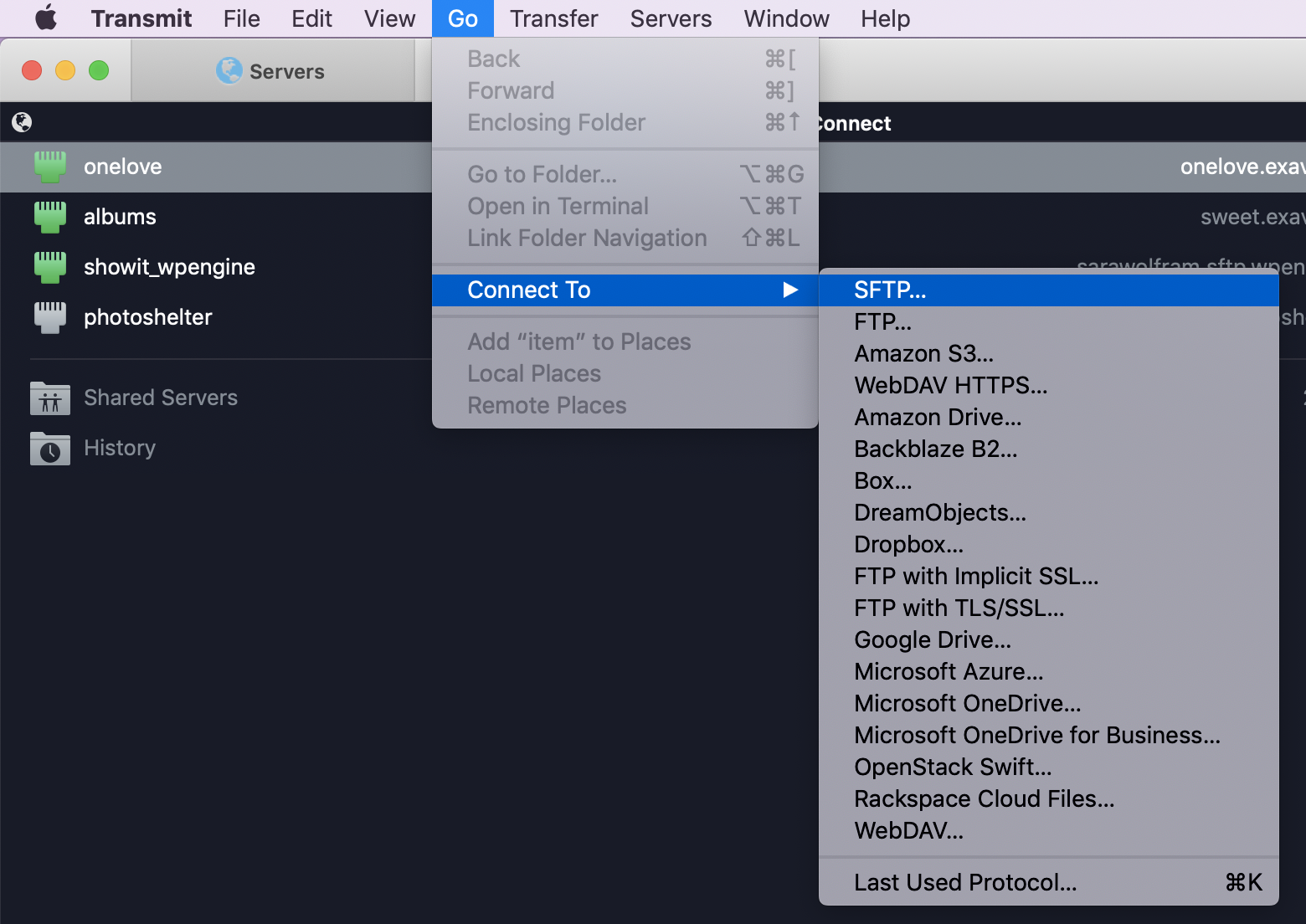
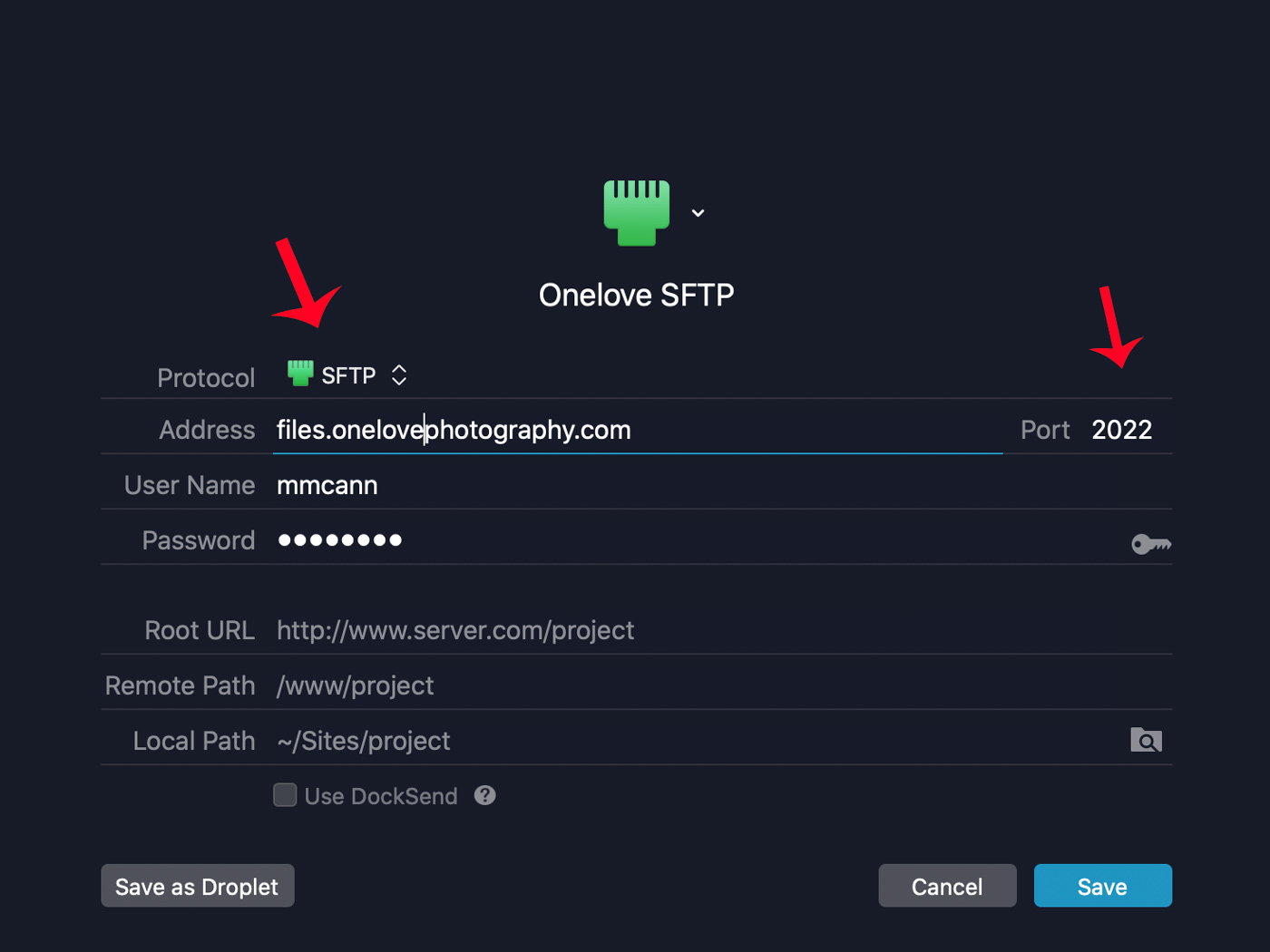
“Add to Servers”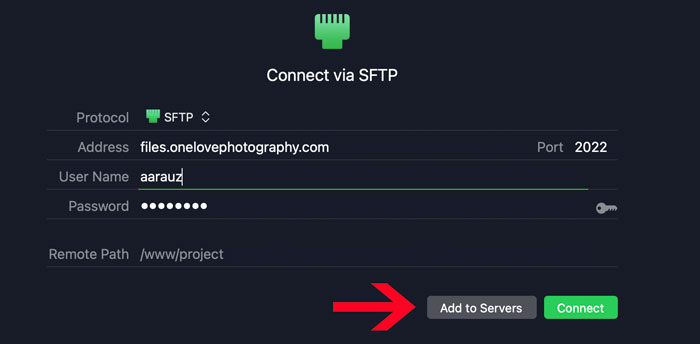
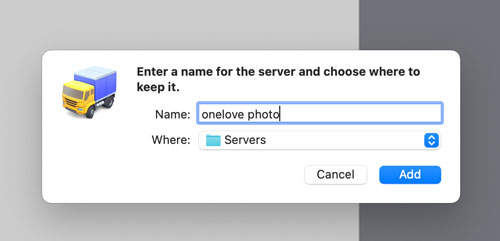
Cyberduck Instructions
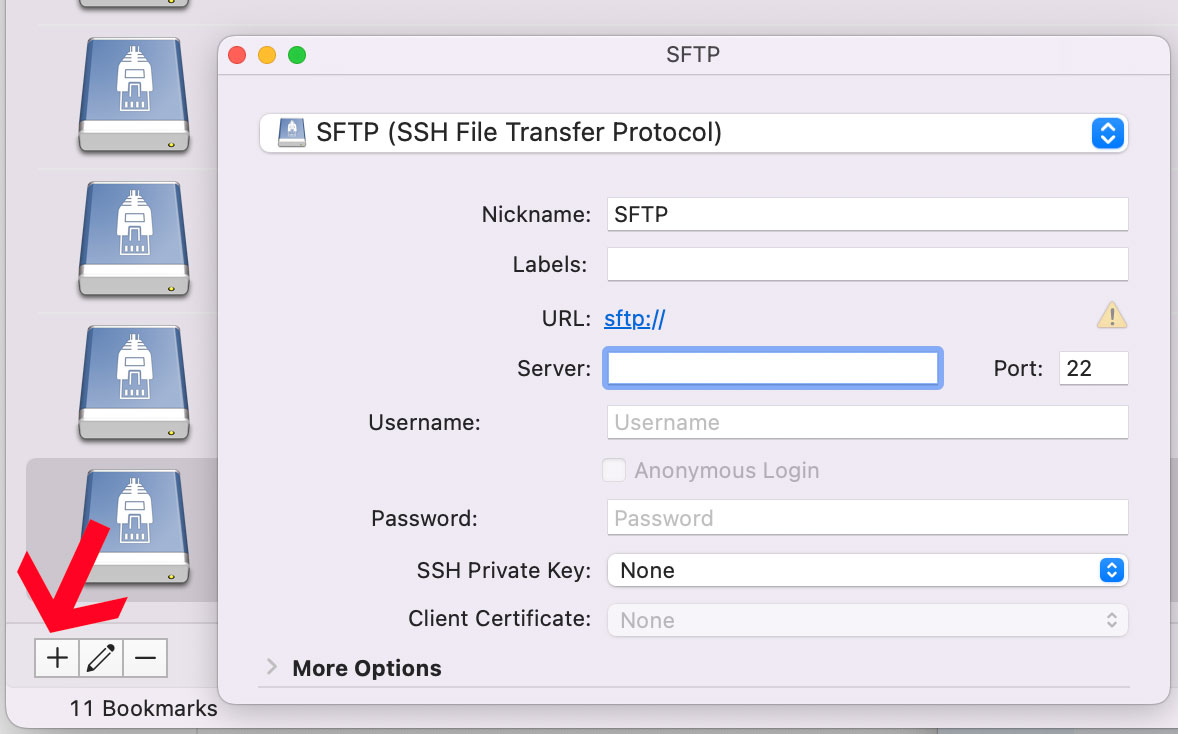
Click”+” in bottom left corner to make a new bookmark
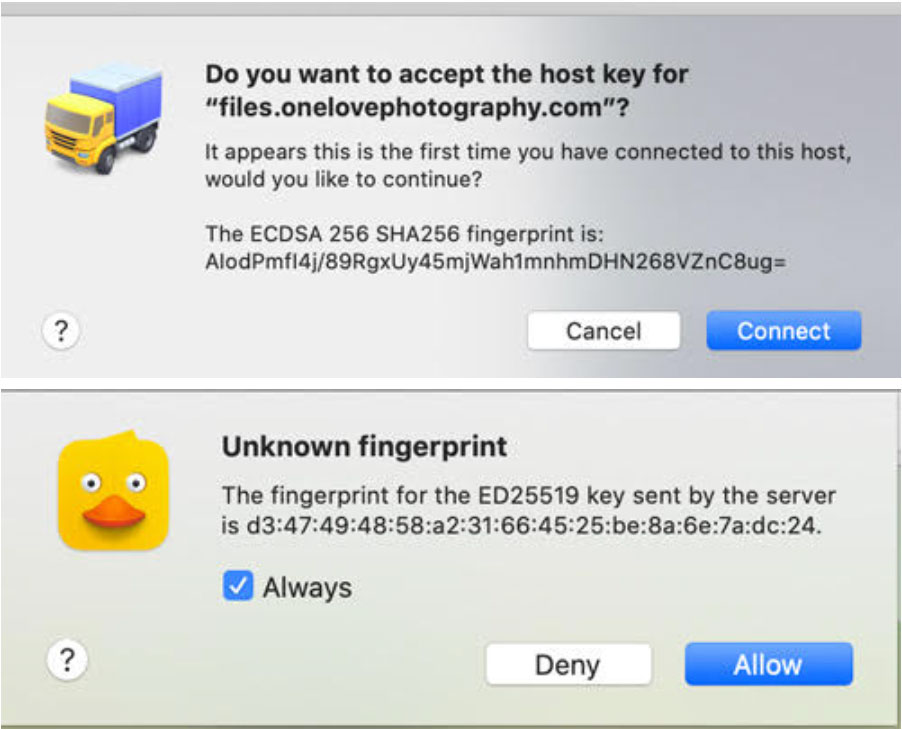
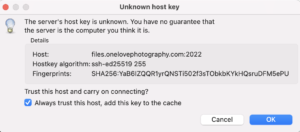
Select “Allow” or “Connect”
 Optimizing Cyberduck
Cyberduck’s strength for high-latency links is its ability to open multiple concurrent connections.
1. Enable Concurrent Transfers
By default, Cyberduck may transfer files one by one. To fix this:
• Go to Preferences > Transfers > General.
• Change “Transfer Files” to “Open multiple connections”.
• In the Transfers window (the pop-up that shows progress), look at the bottom-right corner. There is a counter for “Simultaneous Transfers.” Crank this up to 10 or 15.
2. Segmented Downloads (Experimental)
For single large files, Cyberduck can actually split the file into parts and download them at the same time.
• This is often experimental or protocol-dependent (S3/Swift), but for SFTP, it can be forced via “Hidden Preferences.”
• If you are on macOS, you can try enabling it via Terminal:
defaults write ch.sudo.cyberduck queue.download.segmented.
 Optimizing Transmit (macOS)
Transmit 5 is highly optimized for modern CPUs and handles “pipelining” automatically, but you can still push it further.
1. Increase Simultaneous Transfers
• Go to Settings > Transfers.
• Look for “Transfer up to X files simultaneously.”
• Increase this from the default (5) to the maximum 20. This is the single biggest speed boost when moving folders or multiple assets.
2. Advanced Server Settings
Sometimes the server limits how many times you can log in at once.
• Right-click your Server Bookmark and select Edit.
• Go to the Advanced tab.
• Ensure “Limit number of simultaneous connections” is unchecked, or set it higher than the “Transfers” setting above.
Error When Uploading?
Ensure you upload to the correct folder:
You need to ensure you are inside the actual folder you are intending to upload to 🙂 In the Outline format, it’s difficult to tell which folder you are in.
To ensure you upload to the correct folder: I recommend using Cyberduck in LIST view:
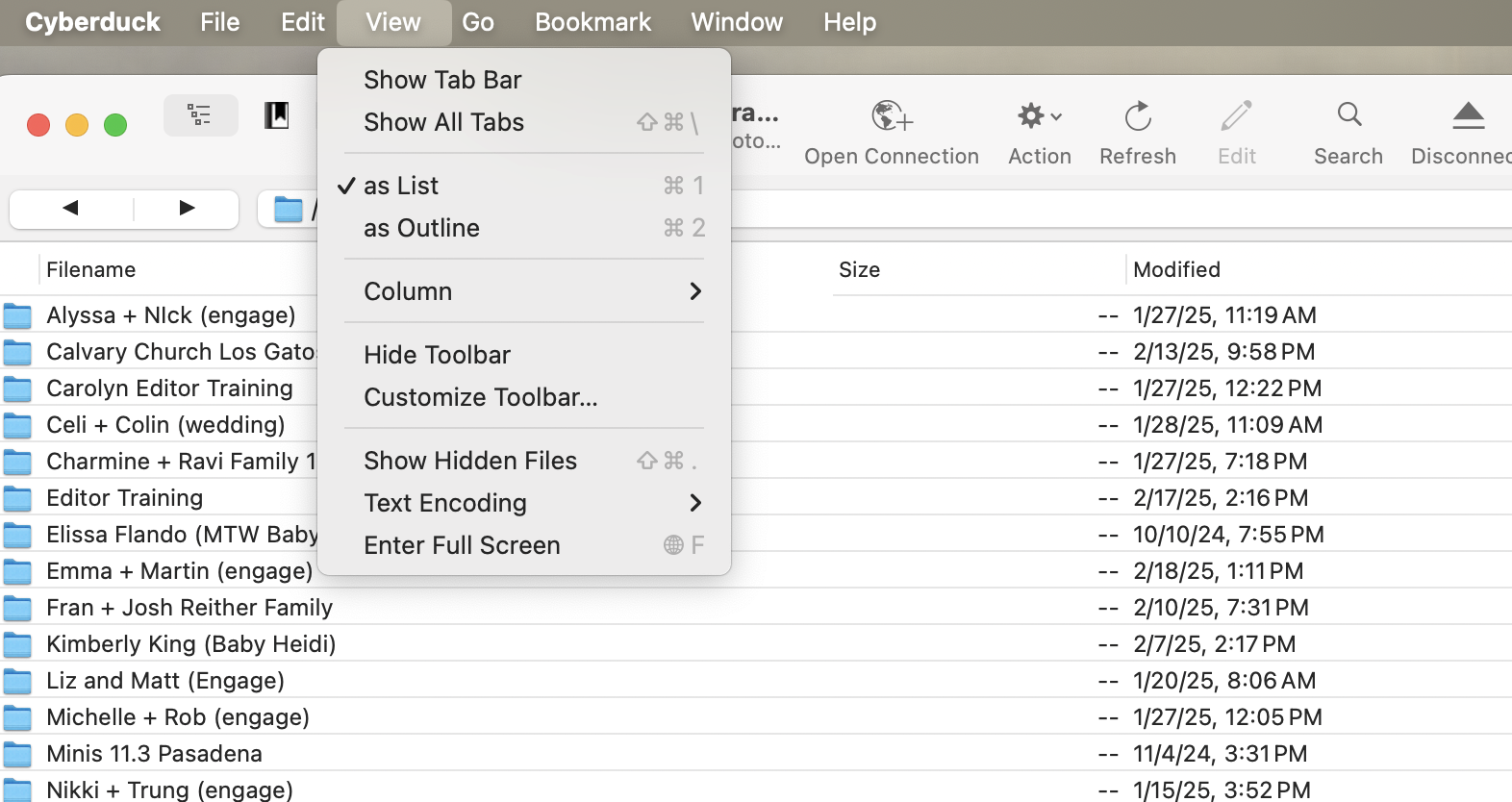 You need to en
Open the “onelove edited” folder and see “Inbox” and “Outbox”.
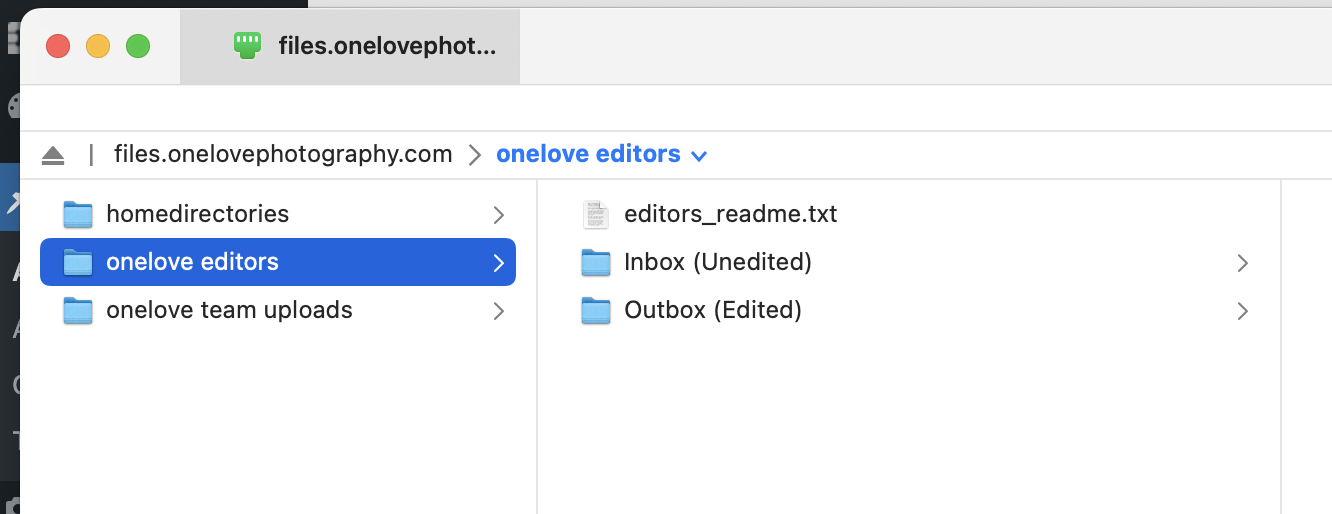
I will place new weddings in the “Inbox” for you.
When you are done editing them, you will be placing one folder in the “Outbox”
CATEGORIES:

